
Features
What you can show in your hotel
Keep guests informed with timely content for each hotel area.
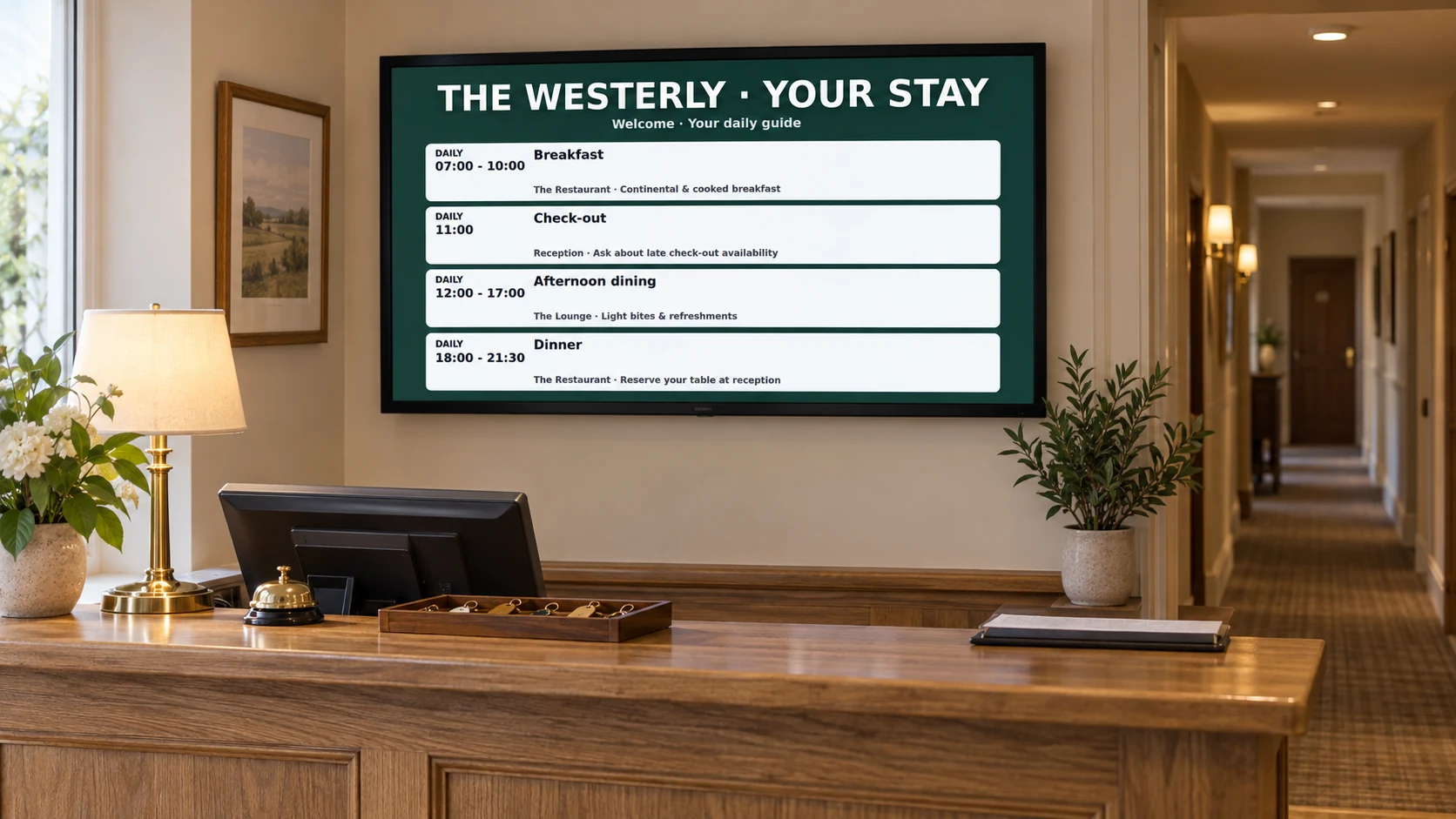
EXAMPLES ON SCREEN
See what your screens can show.
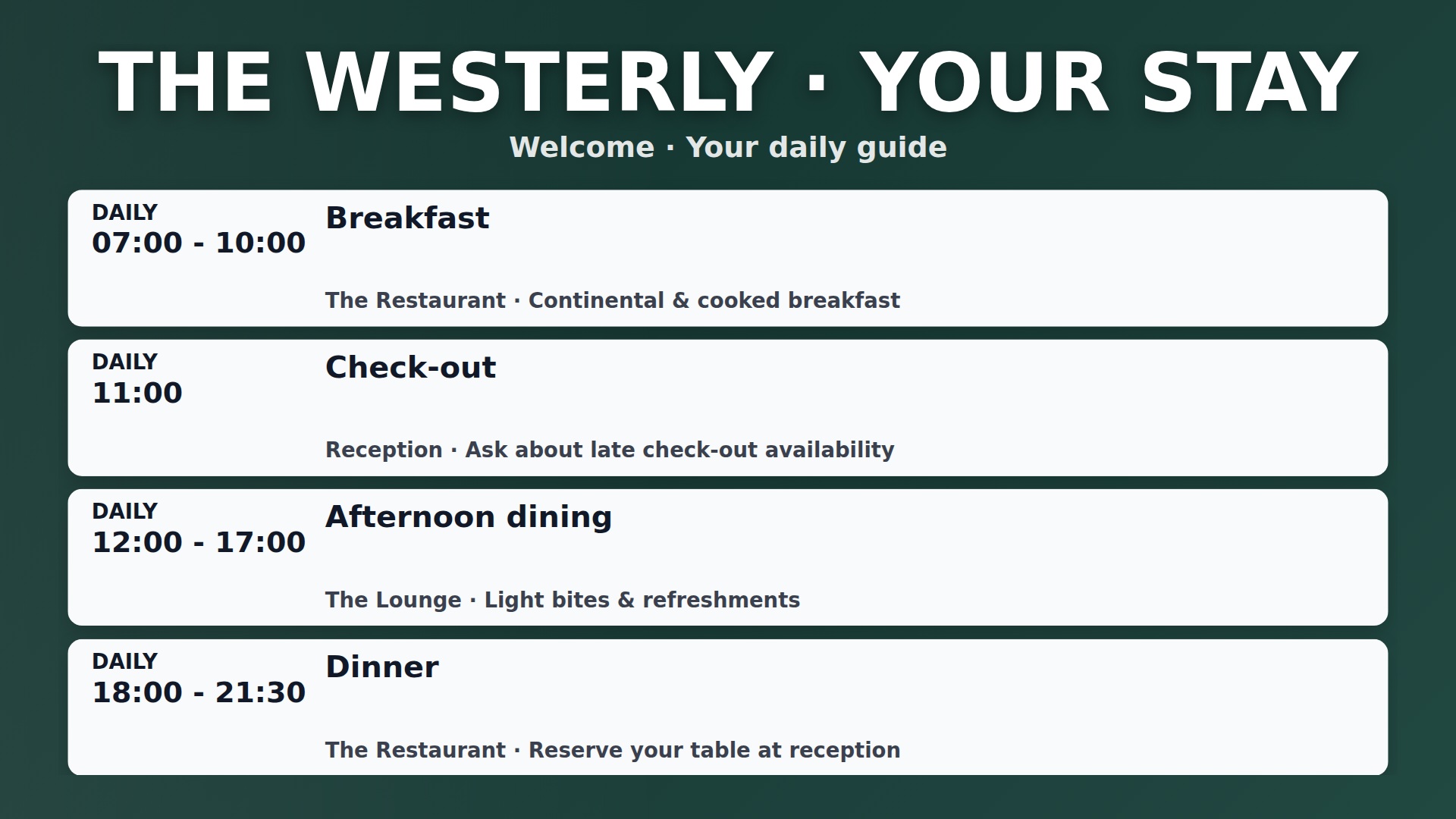
Fewer repeated questions
Keep breakfast times, directions and useful reminders visible where guests are most likely to need them.
More detailLess detail
Keep breakfast times, directions, check-out details and useful reminders visible in the places guests need them.
A warmer welcome
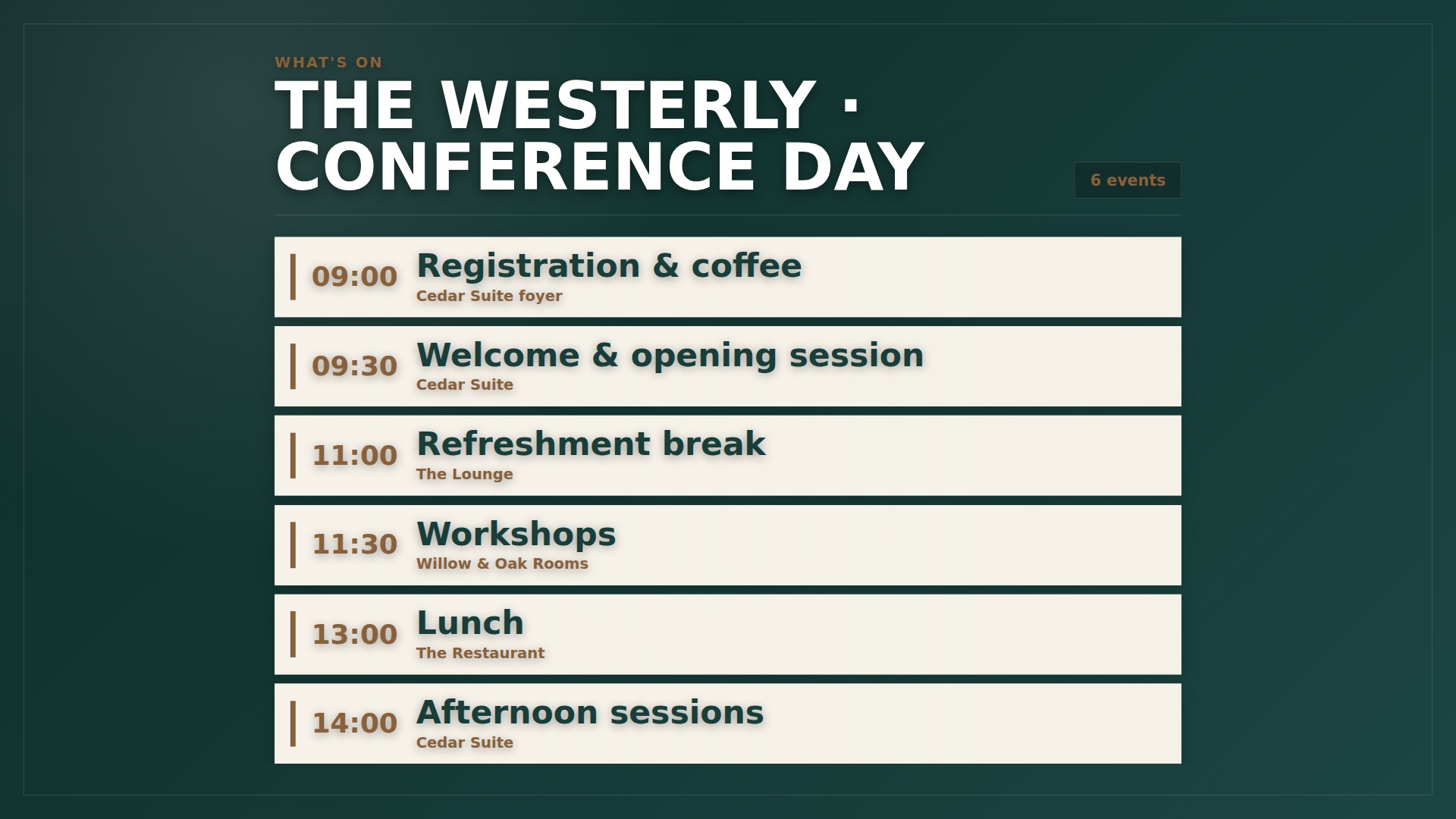
Welcome guests, wedding parties and conference groups with polished messages that suit the occasion.
More detailLess detail
Greet wedding parties, conferences, coach groups and individual guests with timely, polished messages.
More visible hotel services
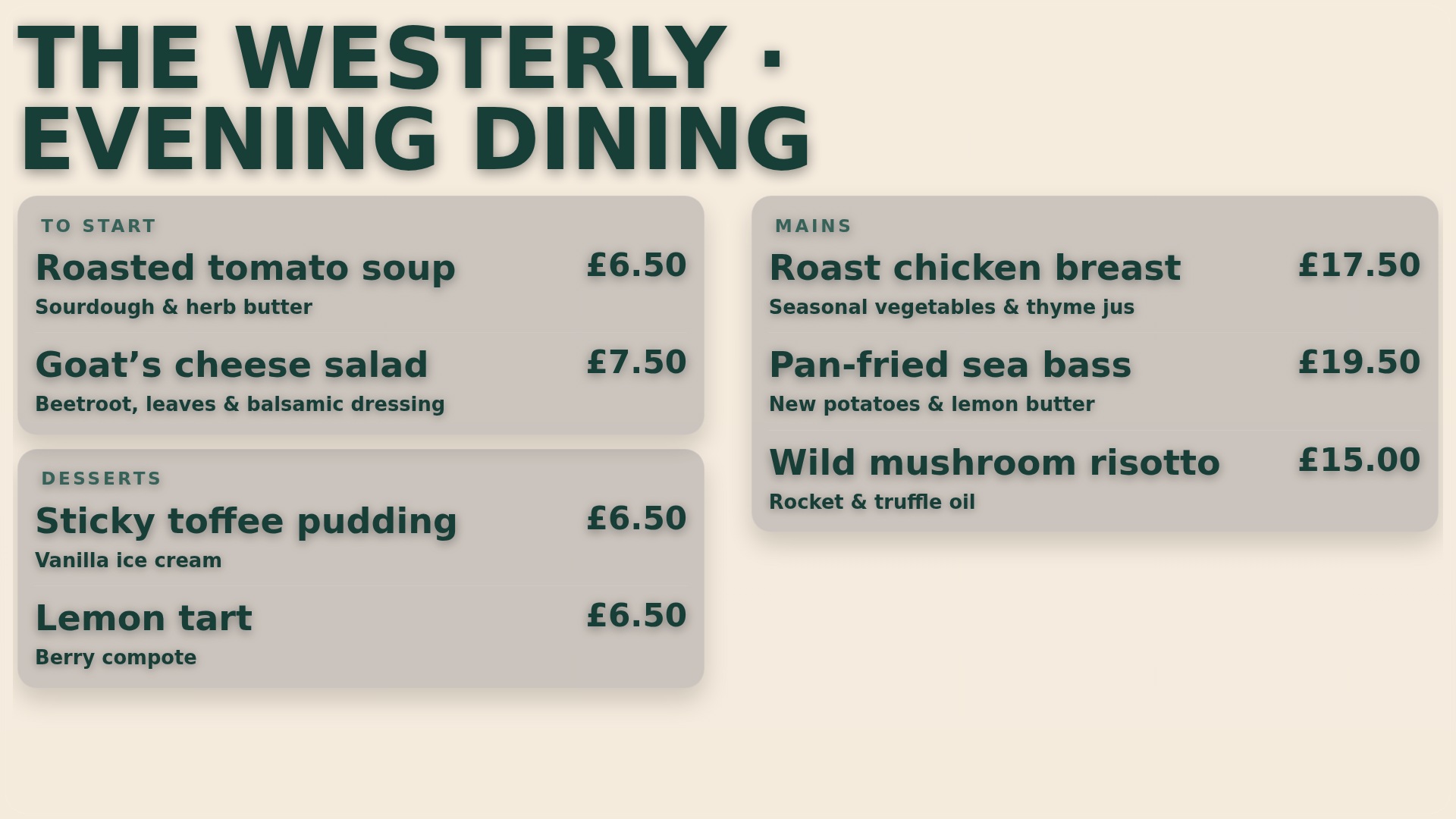
Put dining, spa treatments and other hotel services in front of guests beyond the reception desk.
More detailLess detail
Give dining, spa treatments, room upgrades and late check-out offers space beyond the reception desk.
Update from your dashboard
Keep service times, event information and local recommendations current across the hotel from your dashboard.
More detailLess detail
Keep breakfast times, events, directions, dining offers and local recommendations current without replacing printed signs.
Choose what plays
Arrange hotel content into playlists and schedule what guests see on different days and at different times.
More detailLess detail
Combine your content in playlists and schedule it for different days and times.
Give every screen a purpose
Give each hotel screen relevant content and check its recent connection status from your account.
More detailLess detail
Choose a playlist for each screen and check its recent connection status from your account.
Upload guest information and presentation pages
Bring hotel photography, videos and guest information documents into Media, then review converted pages before display.
More detailLess detail
Add hotel photographs, dining graphics and MP4 videos to Media. Import a PDF welcome pack or PowerPoint event presentation as ordered still images, review each converted page and choose which belong in a playlist or folder slideshow. PowerPoint transitions, animations and audio are not preserved in this image workflow; use video for moving content.
Plan the guest day and expire event artwork
Schedule breakfast, arrival and event content for each area, with expiry dates for temporary artwork.
More detailLess detail
Create playlists for breakfast, arrivals, dining and private events. Set the order and display time for each item, then assign reception, lift and function-room screens their own content. Schedules can change the running programme by day and time. Add expiry dates to wedding welcomes or conference graphics so they stop being selected after the event.
Combine hotel branding with practical information
Combine hotel imagery with branding, QR links, notices and practical pages while keeping guest information readable.
More detailLess detail
Use reusable image, text, date/time or QR code overlays on selected playlist items, such as a dining link beside hotel photography. Add short ticker notices or Special pages for a clock, event countdown or weather. Preview each combination to keep directions and service times readable. Live weather and web pages need an internet connection.
Check players across the hotel or group
Review screen connections across the hotel or group and understand how players behave when connectivity drops.
More detailLess detail
Give reception, corridor and event screens clear names, then review recent player check-ins and configured email alerts from your account. A compatible browser or Android player runs the content. Suitable configured players can continue downloaded media during a connection loss, but new instructions and live web content wait for connectivity to return.
Send temporary directions and service notices
Let staff send temporary room directions or service notices to an assigned screen between normal content.
More detailLess detail
Prepare a named message setting for an event entrance or reception screen, including its destination, heading and display time. Staff can then send a room direction or service notice from admin or the separate staff page. Messages arrive at player check-in and normal content resumes afterwards. Optional chimes need working speakers and audio permissions.
Collect approved partner artwork privately
Collect local partner graphics through private links and review each submission before adding it to a playlist.
More detailLess detail
Where advertiser tools are available, keep details and agreed terms for local attractions, transport providers or other hotel partners. Email a private, single-use link for one JPG, PNG or WebP graphic. Submitted artwork enters Media for your review before playlist selection. You retain control of publication, while advertiser invoices and payment collection remain your responsibility.